
Why Is My Pixel Selfie Flipped? How to Stop the Mirror Reversal
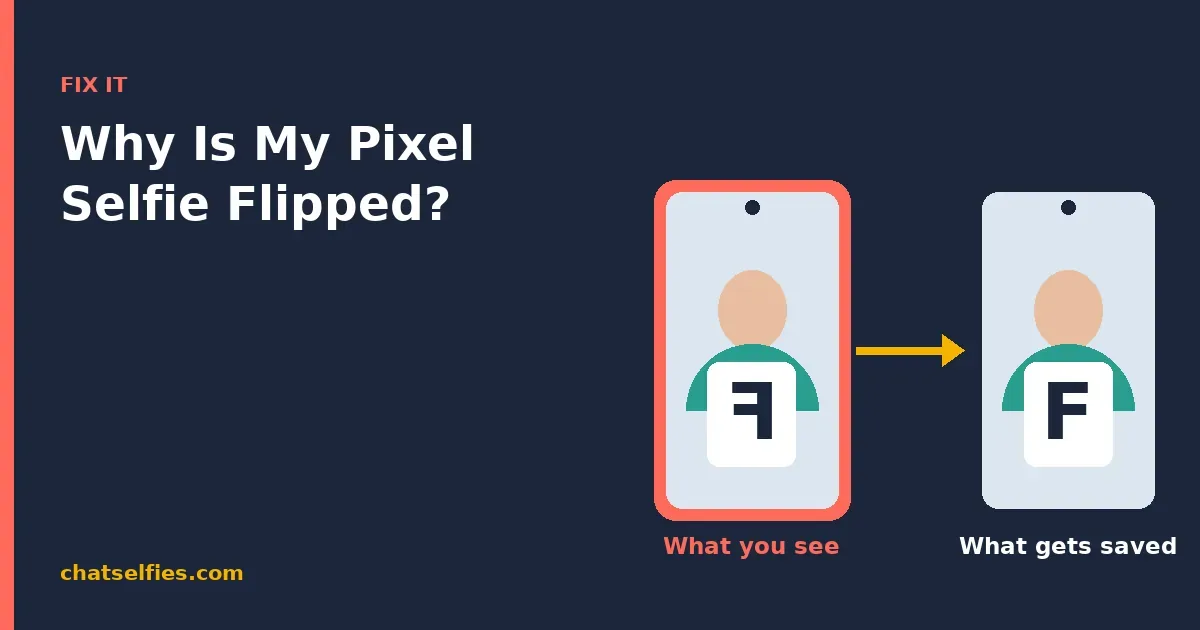
The front-camera preview is mirrored. With Save selfie as previewed off, Pixel saves the un-mirrored version, so it looks flipped compared to what you saw. Turn the setting on to keep the mirror look.
The rest of this guide explains why it happens, how to find the setting, and what to do when a selfie only looks flipped after you share it.
Why your Pixel flips the selfie
A front camera actually sees you the way everyone else does, not the way you see yourself in a mirror. Your preview is mirror-flipped on purpose so that raising your left hand looks like raising your left hand. It feels natural while you frame the shot. Pixel Camera then has to decide how to store that image, and it can save it either as previewed (mirrored) or reversed back to the real-world view (un-mirrored).
The giveaway is any text in the shot. If a word on your shirt, a sign behind you, or lettering on a mug reads backwards in the saved photo, the camera kept the mirrored version, the one saved as previewed. If that text reads correctly, the photo is un-mirrored. Your face hasn’t changed; the whole frame is simply the other way round, so a side part or a crooked smile lands on the opposite side from what you expected.
Fix it: turn on “Save selfie as previewed”
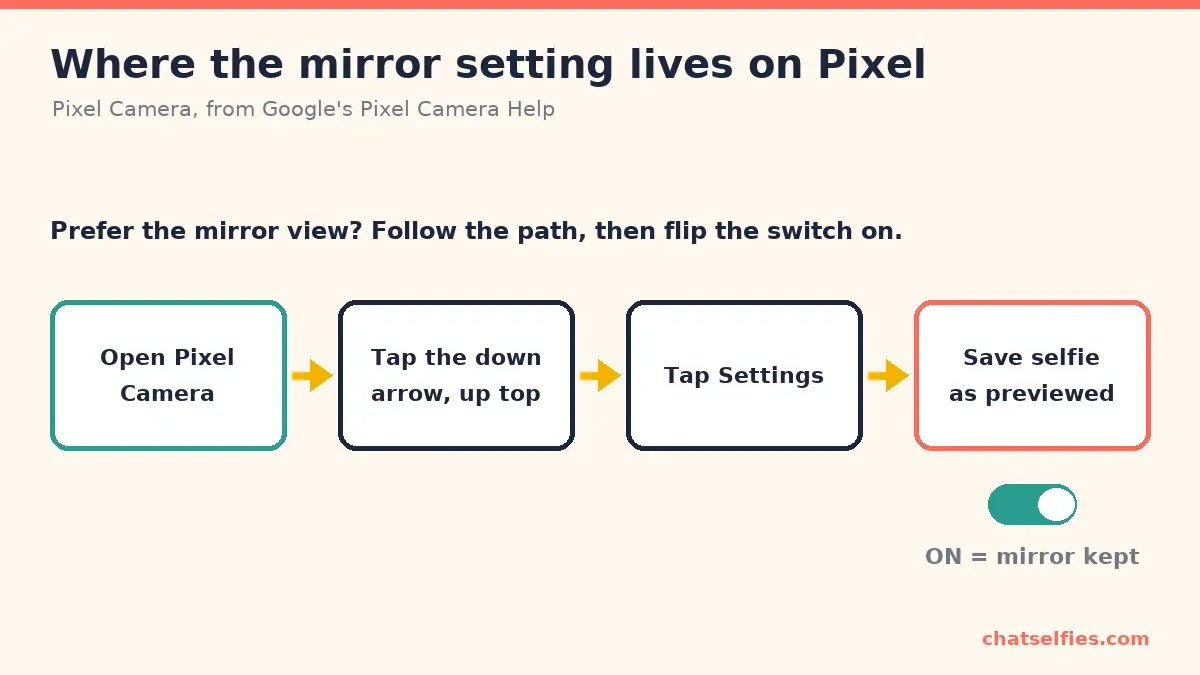
Google puts this control inside Pixel Camera, not in the main Settings app:
- Open Pixel Camera and switch to the front camera.
- Tap the down arrow at the top of the screen.
- Tap Settings.
- Turn on Save selfie as previewed.
With it on, the saved photo keeps the mirrored framing you saw while shooting; with it off, Pixel Camera reverses the photo to the real-world view. Google’s help page sums it up plainly: “If you save a selfie as previewed, it won’t appear reversed after you take a selfie.” If your selfies are coming out reversed, that means the setting is currently off.
Because this lives inside the Pixel Camera app, the menu looks slightly different from the stock Android Camera on other phones. If you want the full rundown of mirror and camera options across brands, see The Best Phone Camera Settings for Selfies.
Which version is actually “right”?
Neither one is wrong. The mirrored version matches what you see in a real mirror every day, so it usually feels more like “you.” The un-mirrored version is how friends, a video call, or a passport photo see you, and it keeps any text readable. Pick whichever you prefer and set it once. The point is that your saved photos stop surprising you.
If the flip is throwing off your framing, it’s worth getting your angle and light sorted too; Selfie Technique: Light, Angles and Poses That Work covers where to hold the phone and how to use window light.
“Flipped” can also mean the camera won’t switch
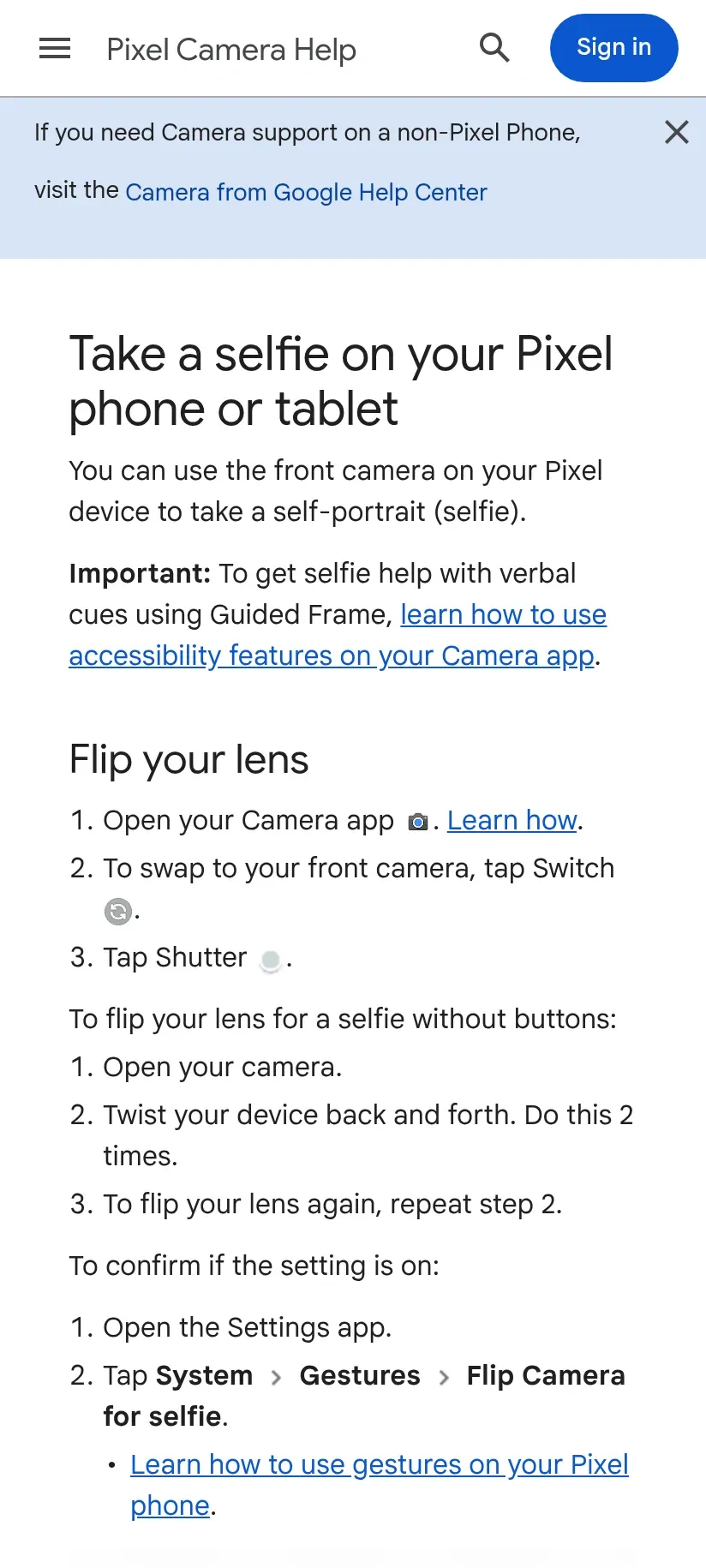
Some people searching for a “flipped” Pixel selfie really mean they can’t flip to the front camera. Google’s Pixel Camera Help page lists a shortcut for that: open the camera, then twist your phone back and forth twice to switch lenses. You can confirm the gesture is enabled under Settings > System > Gestures > Flip Camera for selfie.
If it only looks flipped after you share it
Sometimes a photo looks one way in Google Photos and another way inside a chat or social app. Different apps may show or process photos differently, so if the result there isn’t what you expect, check that app’s own camera, photo, or “flip” settings. Pixel Camera’s Save selfie as previewed setting only affects photos you take with Pixel Camera itself. It has no say over how another app captures or displays an image.
A quick way to see what Pixel Camera actually saved: find the original file in Google Photos. Whatever orientation it shows there is the photo Pixel Camera stored. If a specific app shows it differently, look for the fix in that app’s own settings.
Still looks off? A short checklist
- Text reads backwards in the saved photo? Save selfie as previewed is on. Turn it off if you want readable text.
- Make sure you’re viewing the saved file, not the live preview. The preview is always mirrored; only the saved photo reflects your setting.
- Only one app looks wrong? The mirroring is happening in that app, so change it there.
- Switched phones recently? Settings don’t carry over, so set Save selfie as previewed again on the new device.
For more one-symptom fixes like blurry, grainy or washed-out selfies, head back to Selfie Problems Fixed: Flipped, Blurry, Grainy and More. You can also read How We Test to see how we check these steps before we publish them.
What we checked
- Google's Pixel Camera Help page for the 'Save selfie as previewed' setting and the path to reach it (camera > down arrow > Settings)
- Google's Pixel Camera Help page for the twist-to-switch 'Flip Camera for selfie' gesture and the System > Gestures path
Device: No device test (official documentation only)
Checked: