
Selfie Problems Fixed: Flipped, Blurry, Grainy and More
Most selfie problems have a boring cause and a quick fix: a mirrored setting, a thumbprint on the lens or not enough light. Find your problem below, and start with the simplest fix first.
Why is my selfie flipped?
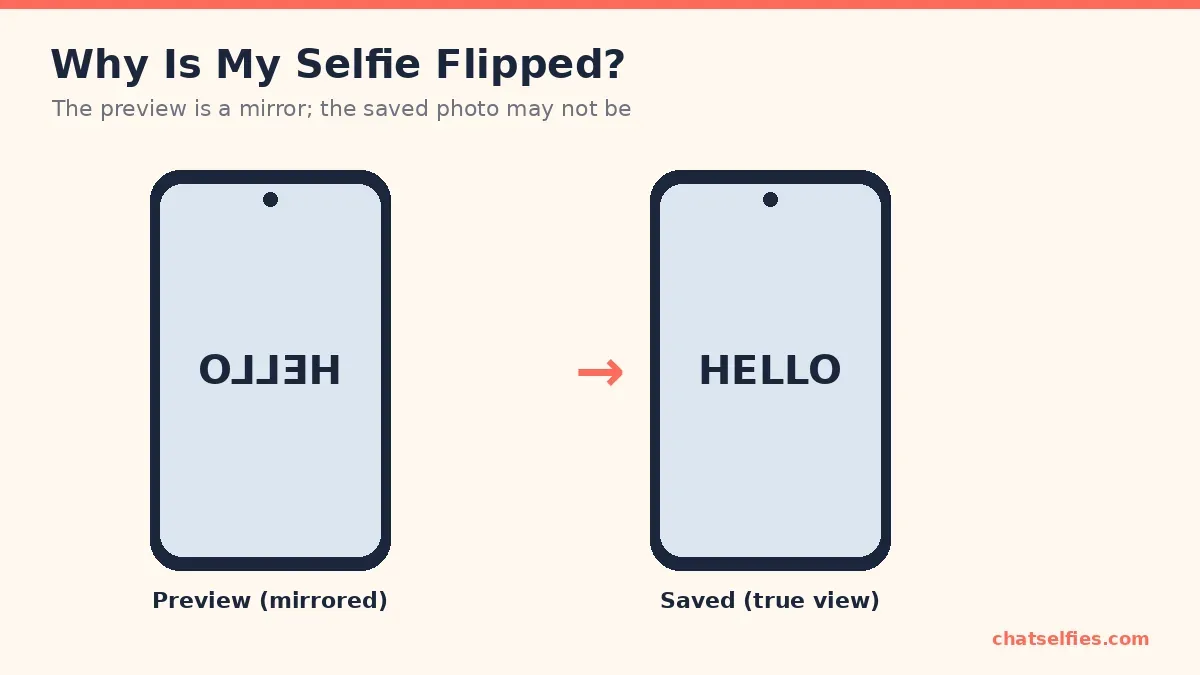
While you're taking a selfie, the screen shows a mirror image. Raise your right hand and the hand on the right side of the screen moves, just like a mirror. That makes it easy to aim. But many phones save the final photo unmirrored, the way a friend standing in front of you would see you. So the part in your hair, a logo on your shirt or the text on a sign "jumps" to the other side after you take the shot.
Nothing is broken. You can choose which version gets saved:
- iPhone: Settings > Camera > Mirror Front Camera.
- Google Pixel: Camera app > tap the Down arrow at the top > Settings > Save selfie as previewed (Google's Pixel Camera Help).
- Samsung Galaxy: Camera > Settings > Save selfies as previewed.
Menu names change between updates. The Best Phone Camera Settings for Selfies lists the full paths with links to Apple, Google and Samsung's help pages. To fix a photo you've already taken, open it in your editor and use the flip button in the crop tool.
Blurry front camera: work down this list
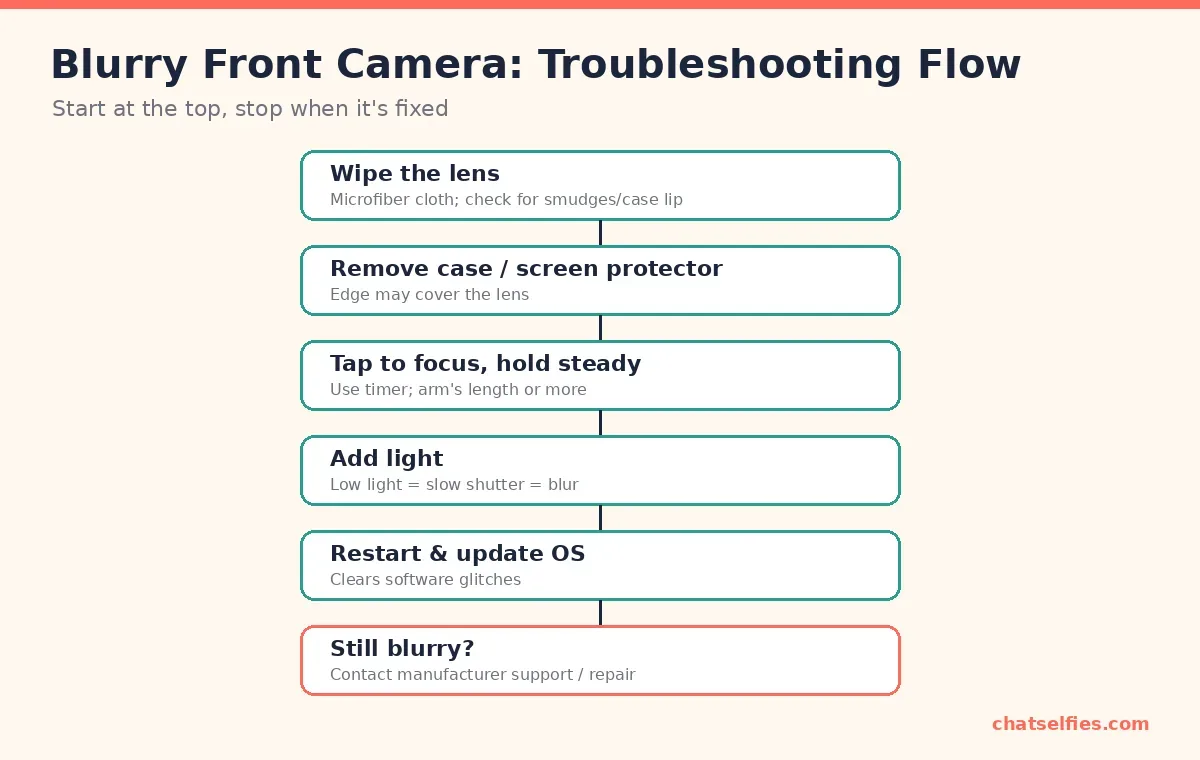
- Wipe the lens. Use a microfiber cloth or a soft cotton shirt. The front lens sits where your thumb and cheek touch the screen, so it's smudged more often than you'd think. Check that the lip of a phone case isn't pressing into the corner of the image.
- Remove the case or screen protector. A misaligned screen protector, or one with a cut-out that's slightly off, can cover part of the lens and make everything hazy.
- Tap to focus and hold steady. Tap your face on screen so focus locks on you, not the background. Front cameras are designed for arm's length, so don't hold the phone too close. Use the timer to avoid shake from pressing the button.
- Add light. In dim light the camera uses a slower shutter, and any movement becomes blur. Face a window or a lamp.
- Restart and update. Restarting clears camera app glitches, and system updates often include camera fixes.
- Still blurry? If the camera is blurry in good light after all of that, there may be a hardware fault. Contact the manufacturer's support or an authorized repair shop. If the phone is under warranty, don't open it yourself.
Quick fixes for other common problems
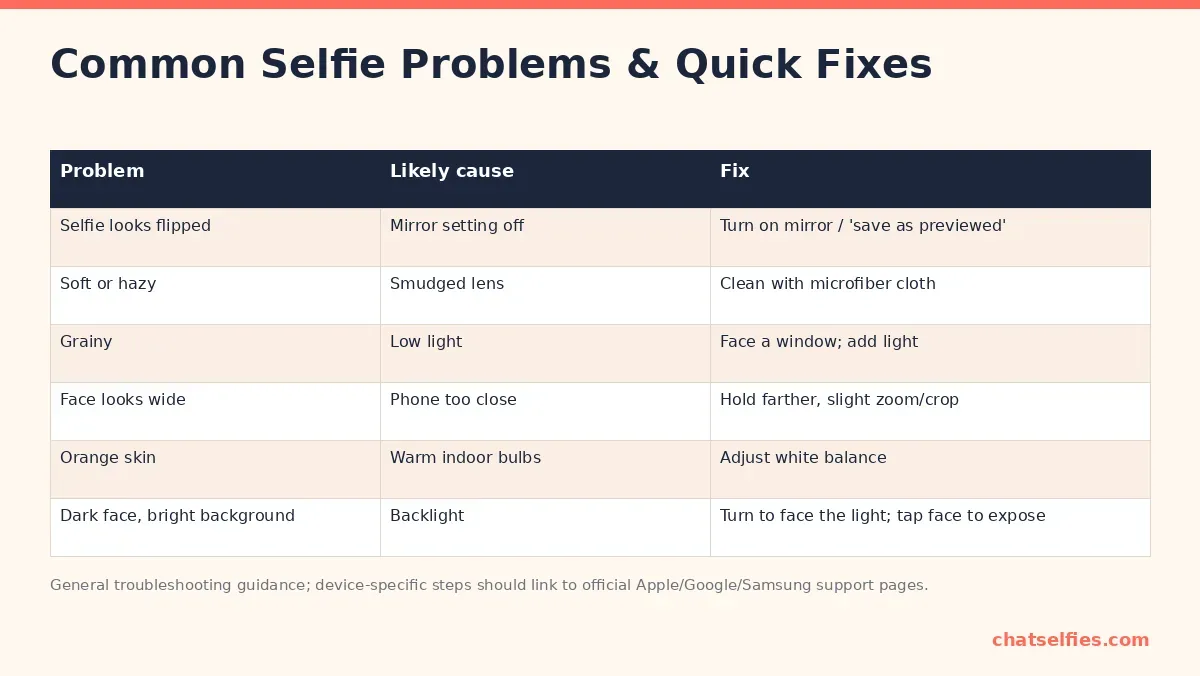
| Problem | Likely cause | Fix |
|---|---|---|
| Selfie looks flipped | Mirror setting off | Turn on mirror / "save as previewed" (see above) |
| Soft or hazy | Smudged lens | Clean with a microfiber cloth |
| Grainy | Low light | Face a window; add light |
| Face looks wide | Phone too close | Hold farther away, then crop or zoom slightly |
| Orange skin | Warm indoor bulbs | Adjust white balance (How to Edit a Selfie: 6 Steps and the Right Filter Strength) |
| Dark face, bright background | Backlight | Turn to face the light; tap your face to set exposure |
Grainy selfies
Grain (noise) comes from the camera boosting sensitivity in low light. Editing can soften it but not remove it without making skin look waxy. The fix is more light: face the window, turn on a lamp, or step outside. If your phone has a night mode, it can help, but you need to hold still for a second or more.
Face looks wider than in real life
That's wide-angle distortion from holding the phone too close. Hold it at full arm's length, slightly above eye level, and crop in afterwards. With a stand and the timer you can go farther still and use the sharper rear camera. Selfie Technique: Light, Angles and Poses That Work explains the angles.
Orange or blue skin
Warm indoor bulbs turn skin orange; shade, screens and cloudy daylight can turn it blue. Fix it with the warmth/temperature slider in your editor, and next time try to light your face with one kind of light. Mixing a window with a warm lamp gives you two colors at once.
Dark face, bright background
The camera exposes for the brightest thing in the frame. Turn around so the light falls on your face rather than behind you, or tap your face on screen to tell the camera what to expose for. HDR (usually automatic) helps balance the two.
Frequently asked questions
Why do my selfies look different from the mirror?
The camera preview is mirrored, like a bathroom mirror, but your phone may save the photo unmirrored, the way other people see you. Faces are slightly asymmetrical, so the unmirrored version can feel "off" even though it is accurate. Turn on Mirror Front Camera (iPhone), Save selfie as previewed (Pixel) or Save selfies as previewed (Galaxy) if you prefer the mirror version.
Does the front camera make your face look wider?
It can. Front cameras use wide-angle lenses, and anything close to the lens looks bigger. Holding the phone at full arm's length, or using a stand and the timer, and then cropping in gives a more natural face shape than holding it close.
Why are my selfies grainy at night?
In low light the camera raises its sensitivity, which adds grain (noise), and slows the shutter, which adds blur. Face the brightest light source you can find, hold the phone very still or rest it on something, and avoid digital zoom.
Can I unflip a selfie I already took?
Yes. Most photo editors have a flip or mirror button in the crop tool, including Photos on iPhone. If yours does not, Snapseed's Rotate tool can flip an image horizontally. Flipping changes how text in the photo reads.
My front camera is blurry even in good light. Is it broken?
Usually not. Check for a smudge on the lens, a case or screen-protector edge covering it, and focus locked on the background. Restart the phone and install updates. If it is still blurry after all of that, contact the manufacturer's support or a repair shop.