
iPhone Mirror Front Camera Setting Missing? Where to Find It
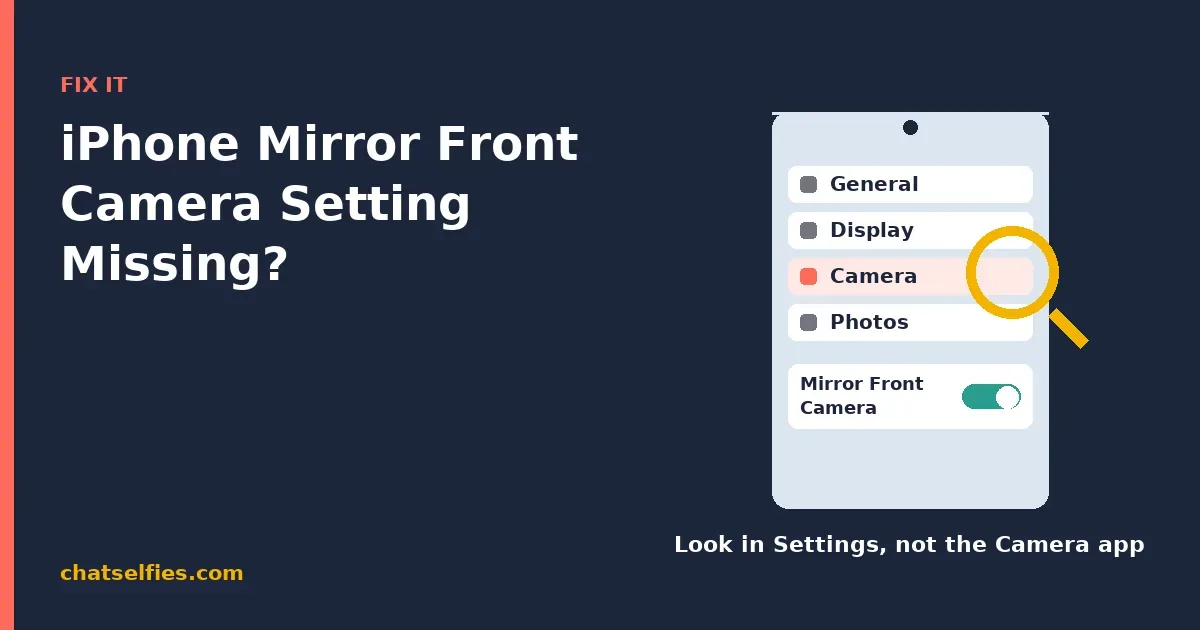
Mirror Front Camera lives in the Settings app under Camera, not inside the Camera app itself, so open Settings, tap Camera, and scroll down to look there first. If it is genuinely not on that screen, your iPhone’s iOS is too old for the feature, which Apple introduced in iOS 14, and updating iOS usually brings it back.
The rest of this guide shows the exact path, explains the three reasons the toggle looks missing, and covers what to do if the setting is there but your selfies still look reversed.
Where the setting actually is
Most “missing” reports come down to looking in the wrong place. The control is not a button in the Camera app; it is a toggle in the main Settings app. Apple’s own instructions are short: “To take a selfie that captures the shot as you see it in the front-facing camera frame, rather than reversing it, go to Settings > Camera, then turn on Mirror Front Camera,” per Apple’s Take a selfie with your iPhone camera page.
- Open the Settings app (the grey gear icon), not the Camera.
- Scroll down and tap Camera.
- Scroll down the Camera screen until you see Mirror Front Camera.
- Turn the toggle on.
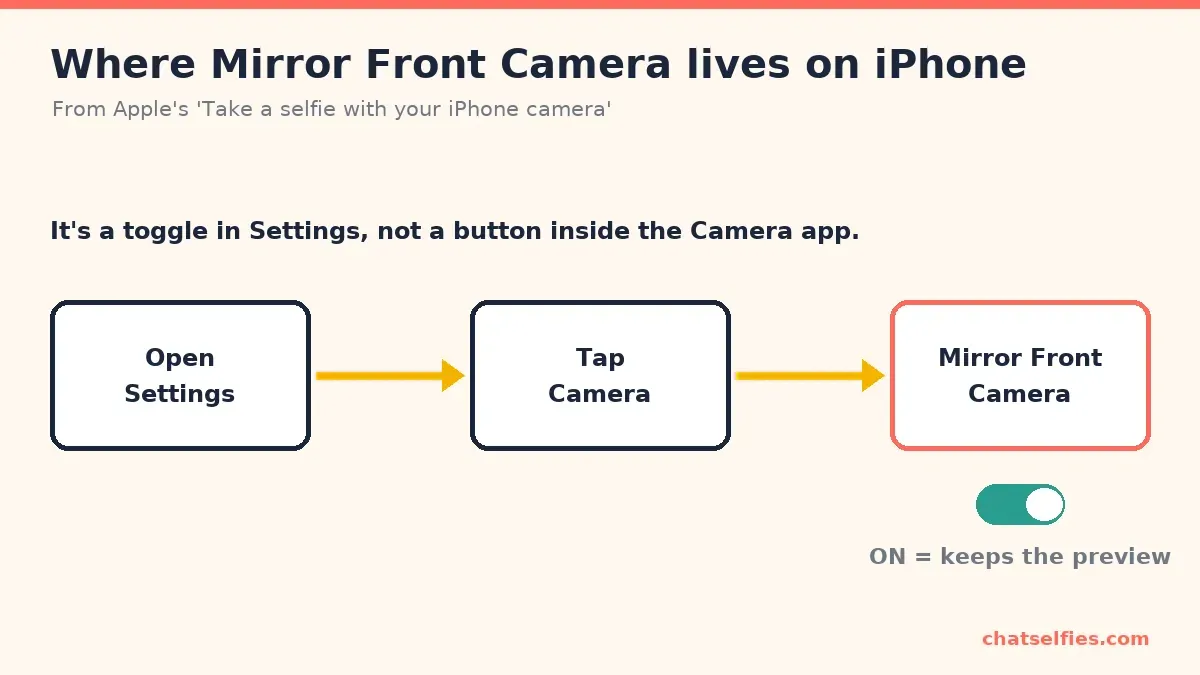
With it on, the saved selfie keeps the left-right orientation you saw in the preview. With it off, iPhone reverses the shot, which is why text and a side part can end up on the opposite side from what you expected.
It has a different name on older iPhones
If you are on an older iPhone, the toggle is still there but under a different label, so you may scroll right past it. On iPhone X and earlier the setting is called Mirror Front Photos, not Mirror Front Camera. Apple’s iOS 14 iPhone User Guide lists both names: “Mirror Front Camera” on iPhone XS, iPhone XR, and later, and “Mirror Front Photos” on iPhone X and earlier, per Take a selfie with your iPhone camera. So in Settings > Camera, look for either wording depending on your model.
Why the toggle is missing: your iOS is too old
If you have scrolled through all of Settings > Camera and Mirror Front Camera simply is not listed, the setting didn’t ship with your software. Apple added it in iOS 14, where the release notes describe it as “Mirror front camera lets you capture selfies that match the front camera preview,” per Apple’s About iOS 14 Updates page. On anything older than iOS 14, the toggle doesn’t exist.
A later update widened who gets it. The same page records that iOS 14.3 added the option to “Mirror the front facing camera for still photos on iPhone 6s, iPhone 6s Plus, iPhone SE, iPhone 7, iPhone 7 Plus, iPhone 8, iPhone 8 Plus, and iPhone X.” So on several older models, front-camera mirroring for photos arrived specifically with iOS 14.3, not the first iOS 14 release.
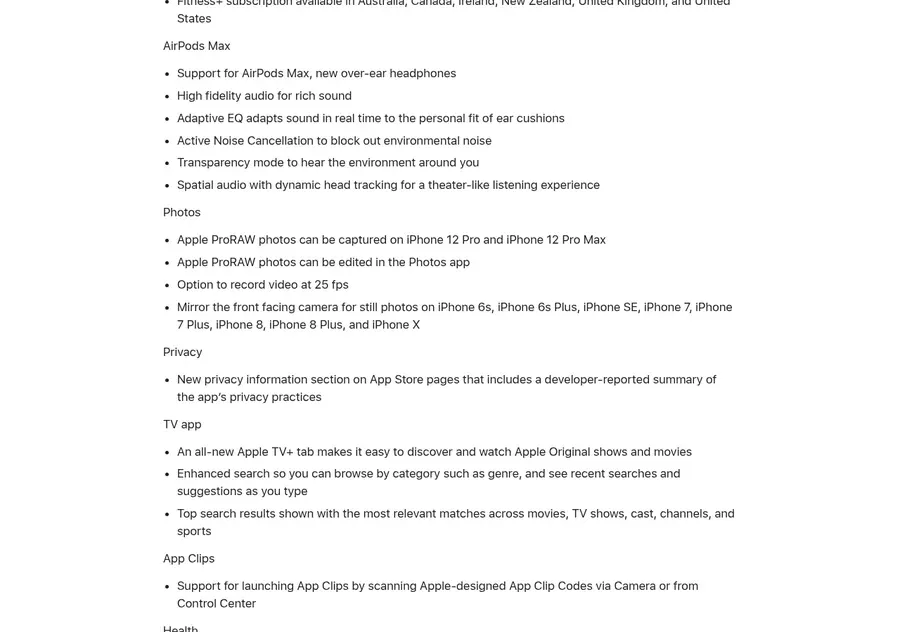
The takeaway: if the setting is absent, the fix is almost always a software update, as long as your iPhone is new enough to run iOS 14 or later.
Get it back: update iOS
Check your version and update from the same place:
- Open Settings and tap General.
- Tap Software Update. Apple notes that here “the currently installed version of iOS is shown, and whether an update is available.”
- If an update is available, tap Download and Install and follow the onscreen steps.
That path and wording are from Apple’s Update your iPhone or iPad page. If your iPhone is already on the latest iOS it can run and that version is still below iOS 14, the hardware is simply too old for this feature, and no setting will appear. In that case you can still fix each selfie after you take it: open the photo in Photos, tap Edit, tap the Crop button, then tap the Flip button to flip it horizontally, as shown on Apple’s Crop, rotate, flip, or straighten photos and videos on iPhone page. As a last resort, a third-party camera app with its own mirror option can do this automatically, but check what any such app does with your photos before you trust it; our pillar on AI Photo Apps for Selfies: What They Do and How to Choose Safely explains what to look for.
The toggle is there, but selfies still look reversed
A few things can make it feel like the setting isn’t working:
- You’re looking at the preview, not the saved file. The front-camera preview is mirrored so framing feels natural. Only the saved photo reflects your Mirror Front Camera choice, so compare the photo in your Camera Roll, not the live view.
- Another app took the shot. Mirror Front Camera only governs selfies taken with Apple’s own Camera app. A social, chat, or video app captures through its own camera code and may mirror differently; change it in that app’s settings.
- You changed the setting but expected old photos to update. The toggle only affects photos you take after flipping it. Shots already in your library keep whatever orientation they were saved with.
For a plain-English explanation of why front cameras flip in the first place, and why neither version is “wrong,” see our companion guide Why Is My Pixel Selfie Flipped? How to Stop the Mirror Reversal. The idea is the same across phones, even though the menu names differ.
Quick checklist
- Can’t find it? Look in Settings > Camera, not the Camera app.
- On iPhone X or earlier? The toggle is named Mirror Front Photos, not Mirror Front Camera.
- Still not there? You’re below iOS 14. Update via Settings > General > Software Update.
- Toggle present but photos look flipped? Check the saved file, not the preview, and remember it only applies to the Apple Camera app.
- iPhone too old for iOS 14? The toggle won’t appear; flip each selfie afterwards in Photos (Edit > Crop > Flip), or use a trusted third-party app as a last resort.
For how mirror and camera options compare across brands, start with The Best Phone Camera Settings for Selfies, and for more one-symptom fixes head to Selfie Problems Fixed: Flipped, Blurry, Grainy and More. You can also read How We Test to see how we check these steps against official sources before publishing.
What we checked
- Apple's 'Take a selfie with your iPhone camera' page for the exact wording and path to Mirror Front Camera (Settings > Camera)
- Apple's iOS 14 iPhone User Guide 'Take a selfie' page for the two setting names: Mirror Front Camera (iPhone XS, iPhone XR, and later) and Mirror Front Photos (iPhone X and earlier)
- Apple's 'About iOS 14 Updates' page for when Mirror Front Camera arrived (iOS 14) and the iOS 14.3 note listing the older iPhone models that got front-camera mirroring for still photos
- Apple's 'Update your iPhone or iPad' page for the Settings > General > Software Update path and how to see your current iOS version
- Apple's 'Crop, rotate, flip, or straighten photos and videos on iPhone' page for flipping a photo after the fact (Edit > Crop > Flip)
Device: No device test (official documentation only)
Checked: